
Send email from Soloblog with Resend
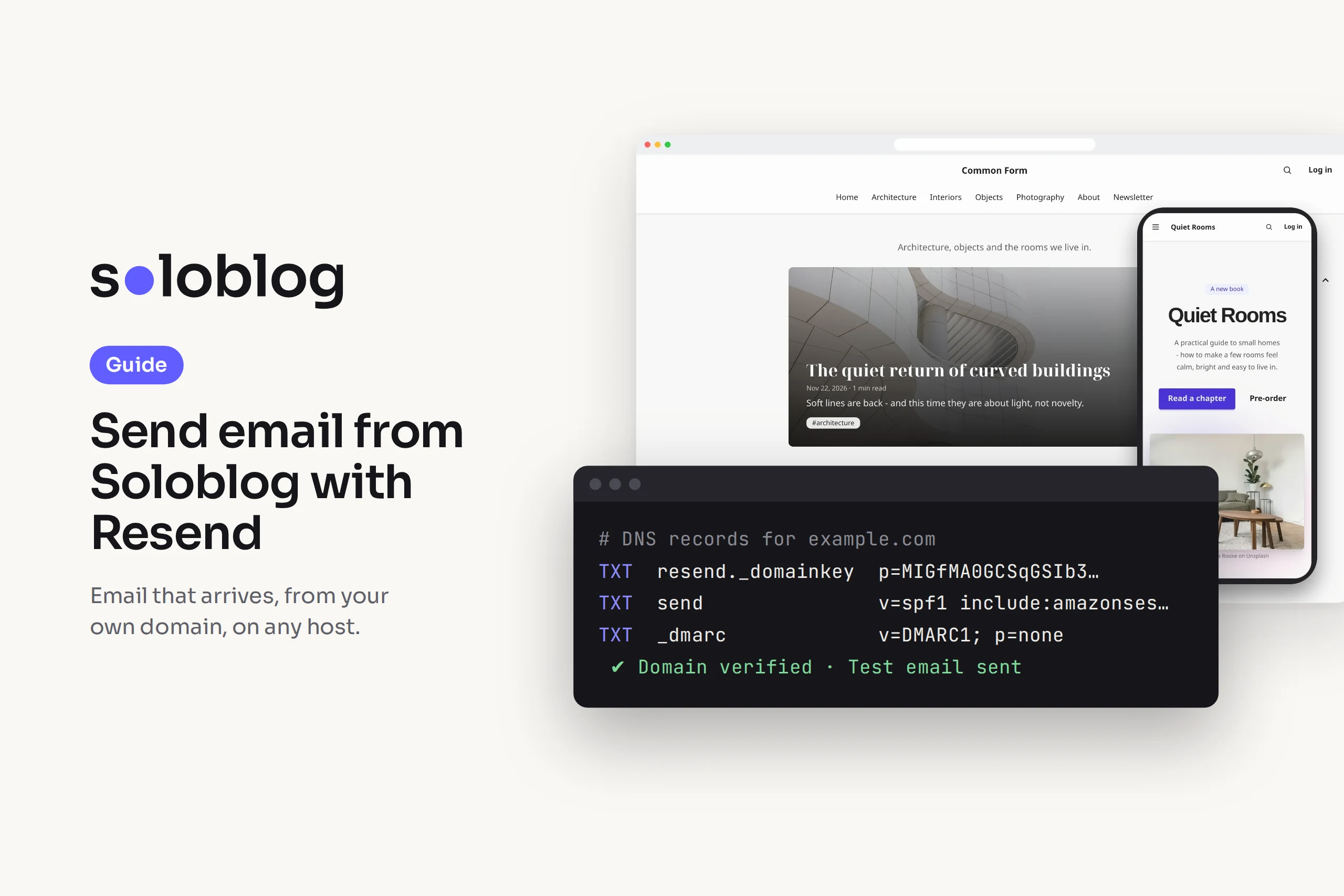
Soloblog is a free, open source blog and website for one person, run on your own server or hosting account. Your site needs to send emails such as password resets, sign-in alerts, comment confirmations, the newsletter, and messages to you. Some hosts block the usual email ports. Soloblog supports sending emails with Resend. It is an email service that sends it from an address at your own domain, and it works on every host - it sends over HTTPS, which no host blocks.
It takes about fifteen minutes, most of it waiting for your domain ownership to be validated by Resend.
What it takes
- A domain of your own, such as
example.com, and access to its DNS settings - usually at the company you bought it from, or at Cloudflare if you manage your domains there. - A free Resend account. The free plan has a daily and a monthly limit, enough for a blog's own emails and a small newsletter. Resend's pricing page has more details.
No domain yet? Soloblog can send from an email account you already have instead - see Rather use your own email account? at the end.
Add your domain in Resend
- Sign up at Resend, then open Domains and select Add Domain.
- Type your domain, and choose the region nearest your readers.
- Resend shows a few DNS records: an MX and a TXT record for sending, and a TXT record called
resend._domainkeythat signs your emails. Add each one where your domain's DNS is managed, exactly as shown. - Back in Resend, select Verify DNS Records. It can take from a few minutes to a few hours; the domain shows Verified when it's done.
These records are what tell inboxes the emails really come from you. Without them, emails land in spam or don't arrive at all.
Make an API key
- In Resend, open API Keys and select Create API Key.
- Name it, such as
soloblog. - Set Permission to Sending access, and choose your domain. That key can send email and nothing else.
- Copy the key now, save it to a password manager. Resend shows it only once.
Connect Soloblog
- In your site's admin, open Settings > Email. Type your Email address twice, and select Save. Soloblog uses this Email to send messages to.
- Select Edit beside Sending email. Under Send email with, choose Resend.
- Paste the API key.
- Fill in the From address: any address at your domain, such as
hello@example.com. Choose one you read - replies go there. Emails show your site's name as the sender. - Select Send a test email, and check it arrives in your inbox.
If you are setting up email on a new Soloblog instance or on a new host, Soloblog's welcome steps includes Set up email which brings you to the same settings mentioned above.
Another advanced method to setup emails for a new Soloblog instance is to use Environment variables on the host. If done correctly, email works from the start. The two variables for Resend are RESEND_API_KEY and RESEND_FROM. After setup the variables show in Settings > Email as Set on your host. If you want to override the Environment variables manually just follow the above guide, Soloblog will use your settings from Settings > Email instead. The setup guide's Send email from your host has additional details.
Add a DMARC record
Gmail and Yahoo expect a third record from anyone sending a newsletter: DMARC, which says what to do with email that fails the other checks. Add a TXT domain record at _dmarc with the following text in your domain settings:
v=DMARC1; p=none
Site health, in the admin menu, checks all three records - SPF, DKIM and DMARC - and will inform you if missing.
Newsletters and the free plan's limits
When a newsletter reaches more people than the plan's limit allows in a day, Soloblog sends to as many as it can and holds the rest. It sends them once the limit resets (Resend's resets at midnight UTC) without you doing anything. A bigger list needs one of Resend's paid plans. We will also be adding other email providers in the future.
Rather use your own email account?
Soloblog can send through an email account you already have, such as Gmail or iCloud. In Send email with, choose An email account you have (SMTP), then Your email provider: it says where to make the app password that provider needs - a separate password for your site, not the one you log in with. It works on hosts that allow email ports. Some keep them closed to stop spam - the setup guide's Send email from your host lists which - and there, Resend is the way.
Questions
The test email didn't arrive?
Soloblog says why, and what to try. Check the API key, and that the domain shows Verified in Resend.
Emails reach you, but nobody else?
The From address is probably at resend.dev, which Resend keeps for trying it out: email from it goes only to you. Use an address at your own domain. Site health warns about this too.
Emails land in spam?
One of the three records is missing or wrong. Check Site health.
Sending from a Gmail address?
It won't work well through Resend: you can't add records to gmail.com, because you don't own it. Send from an address at your own domain.
Comments
No comments yet.