
Back up Soloblog to Backblaze B2
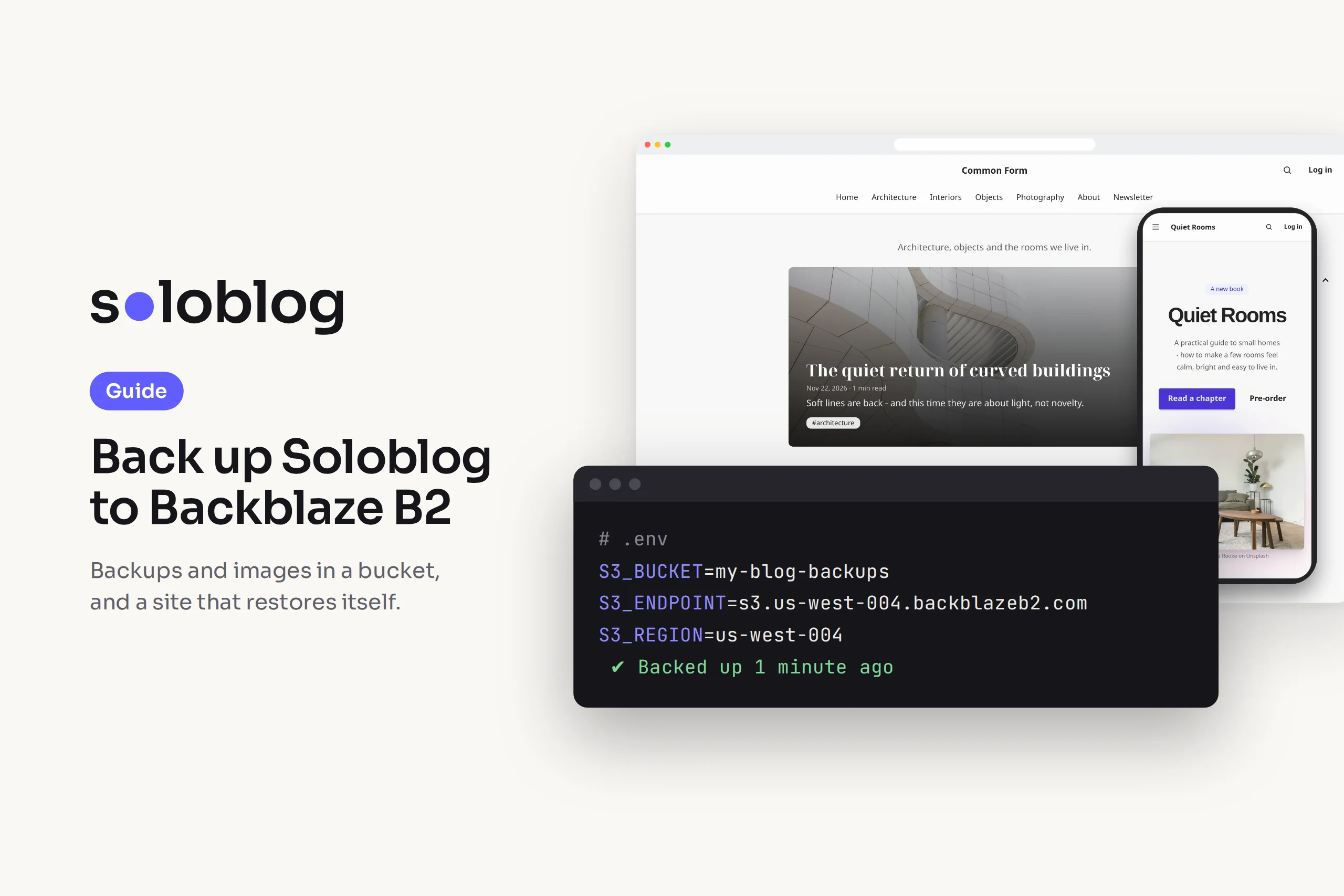
Soloblog is a free, open source blog and website for one person, run on your own server or hosting account. Connect it to a Backblaze B2 bucket, and Soloblog backs up to it automatically. If your server ever fails, or you decide to change hosts a new instance of Soloblog, it can restore your site from the bucket. The bucket also lets Soloblog run on hosts that start from an empty disk each time the site restarts or updates.
It takes about fifteen minutes, all in the browser.
What it takes
- A Backblaze account. B2 is charged by how much you keep, and it has a free allowance a blog often fits in - Backblaze's pricing page has more details.
- Soloblog running somewhere you can change its settings, or environment variables - the
.envfile on your own server, or the settings page of your host.
Make the bucket
- Sign up at Backblaze and choose the region nearest your server. Every bucket in the account is kept there.
- Open Buckets, then select Create a Bucket.
- Give it a name, such as
my-blog-backups. Names are shared by everyone on B2, so add something of your own. - Set Files in Bucket are to Private. Backups hold your whole site, and the bucket never needs to be public.
- Leave Object Lock off - Soloblog deletes old backups as it makes new ones. Default Encryption can be on or off; for your own lock on everything, see the passphrase below.
- Select Create a Bucket. The bucket's page shows its Endpoint, such as
s3.us-west-004.backblazeb2.com. Copy it.
Keep only the latest version of each file
Unless you change it, B2 keeps every earlier version of a file and charges for each one. Every time an image is edited, and every backup Soloblog makes and later deletes, would stay in the bucket - so the bill keeps growing, even though Soloblog keeps only the backups you ask for.
- On the bucket's row, open Lifecycle Settings.
- Choose Keep only the last version of the file, then Update Bucket.
Want a history of your images? Soloblog keeps one copy of each image, the latest: cropping or rotating one replaces it, and an image deleted for good is gone. B2's old versions are the only way to keep earlier ones. If that matters to you, leave the setting as it was, and expect to pay for every version.
Make a key for the bucket
- Open Application Keys, then select Add a New Application Key.
- Name it, such as
soloblog. - Under Allow access to Bucket(s), choose your bucket - this one only.
- Leave Type of Access at Read and Write, then select Create New Key.
- Copy the keyID and the applicationKey now, save them into a password manager. The applicationKey is shown only this once.
Connect Soloblog
Add these five settings, with your own values. All five are needed:
S3_BUCKET=my-blog-backups
S3_ENDPOINT=s3.us-west-004.backblazeb2.com
S3_REGION=us-west-004
S3_ACCESS_KEY_ID=your keyID
S3_SECRET_ACCESS_KEY=your applicationKey
S3_BUCKETis the bucket's name exactly as Backblaze shows it, capital letters too.S3_REGIONis the middle part of the endpoint -us-west-004above.
On your own server, add them to the .env file in the soloblog folder, then run docker compose up -d there. On a hosting service, add them where it keeps settings or environment variables, then restart the app.
Then open Settings > Backup and import in your site's admin. The Cloud storage card names the bucket and shows the last backup. Select Back up now to make the first one, and Sync images with This site to your bucket to copy your current images to the bucket.
What happens next?
- Images are copied to the bucket as you add, edit or delete them. An image you trash moves to a trash folder in the bucket, and is deleted there when you empty the trash.
- Backups are made about a minute after you change something. In the Cloud storage card, How often makes them daily or weekly instead, and Backups to keep says how many stay - the newest 30 to start with.
- Restoring is in the same card: choose a backup under Recent backups and select Restore. It shows what's in the backup first. A restore puts back posts, settings and the rest as they were, but not an image deleted since - images aren't part of a backup.
- Sync images works both ways - This site to your bucket, or Your bucket to this site - copying only what's missing or different. It doesn't delete anything.
- Deleted an image while the bucket couldn't be reached The bucket keeps it until your next backup or sync, which deletes it there too.
- Saving a post never waits for the bucket. If B2 is slow or can't be reached, your site carries on, and the copies catch up later.
Move to a new host
The bucket carries your site with it.
- On the old site, open Settings > Backup and import and select Back up now in the Cloud storage card, so the newest backup has everything.
- On the new host, add the same five settings - and
S3_PREFIXandBACKUP_PASSPHRASE, if you set them. - Open the new site. It finds an empty disk, restores itself from the newest backup in the bucket - posts, settings, comments, members and your login - and brings back your images. Log in with your usual password.
- Stop the old site, so the two don't both make backups in the same bucket.
The new site says "Restore your site"? It couldn't restore itself, and says why. The backup may be locked with a different passphrase - type the one it was made with. The bucket may not have answered - check the five settings, then select Try again. Or the newest backup couldn't be opened - choose an earlier one. Each asks for the setup token, which is in your host's log on the lines marked [setup]. Start a new site instead sets up an empty site and leaves the backups in the bucket.
Hosts without a disk
Some hosting services start every deploy or restart from an empty disk - Heroku, for example. On its own, Soloblog would start blank each time there. With a bucket connected, it sees the empty disk when it starts and restores itself from the newest backup: posts, settings, your login and the images.
For one of these hosts, make the bucket and key first, then add the five settings when you create the app. Add a SESSION_SECRET too - 64 random characters - so you stay logged in across deploys. A change made in the last minute before a crash can be lost; a normal restart backs up first.
Who can see what's in the bucket
Anyone with the bucket's key, and Backblaze itself. Your published images are on your site for everyone anyway, so this matters for images in drafts and members-only posts, and for your backups, which hold your whole site. Keep the bucket private, and the key only on your host.
To lock everything, set BACKUP_PASSPHRASE as well. Soloblog then encrypts every backup and image before it leaves your server, and no one can open them without the passphrase - not Backblaze, and not a new server either. Save it in a password manager before you set it.
Changing it later? Images are copied again, locked the new way, when Soloblog restarts. Older backups still need the passphrase they were made with, and restoring one asks for it. On a host without a disk, the site asks for the old passphrase when it starts, before anything else. The setup guide's Lock the bucket with a passphrase has the details.
Multiple sites, one bucket
Multiple Soloblog instances can be backed up to one bucket. Give each site its own folder in the bucket with S3_PREFIX, such as S3_PREFIX=my-blog. Each site reads, backs up to and clears only its own folder. Without it, files go at the root of the bucket. Read more about the other optional settings - turning off automatic backups, or restoring on an empty disk - on the setup guide's Keep files in cloud storage.
Comments
No comments yet.